Recover your Login Details
Trouble logging into your account? Let's get you back into your account.

Let's get you back into banking



Secure Code Authentication
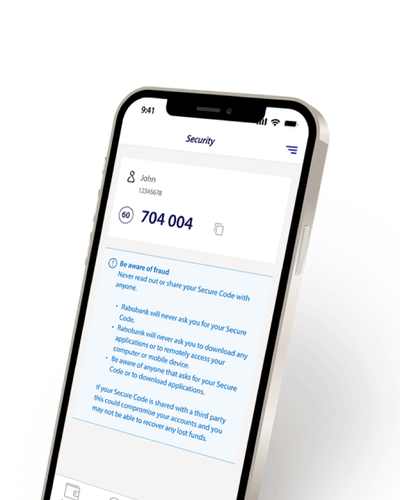
The Secure Code is a unique 6-digit code generated on the Rabobank Online Savings mobile app. This code is used to log in to Internet Banking, authorise transactions or change account details, providing an extra layer of security to your account.
The Secure Code changes every 60 seconds so do not write this down for the next time you log in. If you haven't registered for Secure Code, please donwload the Rabobank Online Savings app below to get started.


App Store is a service mark of Apple Inc., registered in the U.S. and other countries. Google play is a trademark of Google Inc. Not available on Windows Phone.
Forgot internet banking password
- Your customer number. If you’ve forgotten your customer number, you can find this on the home screen of the mobile app
- Access to your Secure Code or your registered mobile phone
Please note you can not reset your password using the mobile app.
If you no longer have the Rabobank Online Savings app, have changed phones, deleted the app, or simply can’t access Secure Code, you can still reset your password using Rabobank’s alternative verification path.
Follow the steps below if you don't have access to Secure Code:
- When prompted with the question 'Do you have access to the Secure Code on your device?', select No
- You will then be asked to enter your date of birth to begin identity verification
- Rabobank will send you a verification code via SMS to the mobile number associated with your account
- If preferred, you can choose 'Send code via email' instead of SMS.
- Enter the verification code you received to confirm your identity.
- Once verified, you’ll be taken to the password reset screen, where you can create a new password.
Why you might not have access to Secure Code?
- You have changed mobile phones and need to register Secure Code on your new device
- You have lost or reset your device
- The Rabobank Online Savings mobile app has been deleted on your device
- You may not have registered your device for Secure Code
To update your Rabobank Online Savings Account password using Secure Code, you'll need:
- Your mobile phone or smart device that has been registered for Secure Code
- Your customer number
- A laptop or desktop computer to log into internet banking
Follow these steps to reset your password using Secure Code:
- Log into Rabobank Online Savings Internet Banking
- Enter your customer number and click 'forgot password'
- Confirm your mobile number. You'll be prompted with the last 4-digits of your number
- Once confirmed, you'll be asked to enter your Secure Code
- To get your Secure Code, open the Rabobank Online Savings mobile app on your mobile phone or smart device and tap 'Get Secure Code'
- Enter your 6-digit pin
- Your device will then display a unique 6-digit code - this is your Secure Code
- Return to your laptop or desktop computer and enter your Secure Code (not the PIN you used to access the mobile app)
- You'll now be able to create your new password
- Your customer number
- Access to a smart phone or device
- Your linked nominated bank account details for verification. This is the everyday transaction account that you hold with another New Zealand Registered Bank, like a savings or a cheque account you would have set-up when you open the account.
Forgot mobile app PIN
Your mobile app PIN is a 6‑digit number you choose to log into your Rabobank Online Savings account. You need this PIN to be able to access your Secure Code that is used to access Internet Banking.
To reset your PIN to the Rabobank Online Savings mobile app:
- Open the Rabobank Online Savings app.
- Tap 'Forgot PIN'
- Enter your 'Customer Number'
- Enter your 'Password'
- A 6-digit verification code with be sent to your mobile phone or you can opt to have it sent to your email address
- Enter the verification code then you'll be able to set-up your new 6-digit PIN
After your PIN has been successfully reset, simply tap 'Login to mobile banking' and enter your newly created 6‑digit PIN. You’ll then be able to access your account as normal.
Finding your customer number
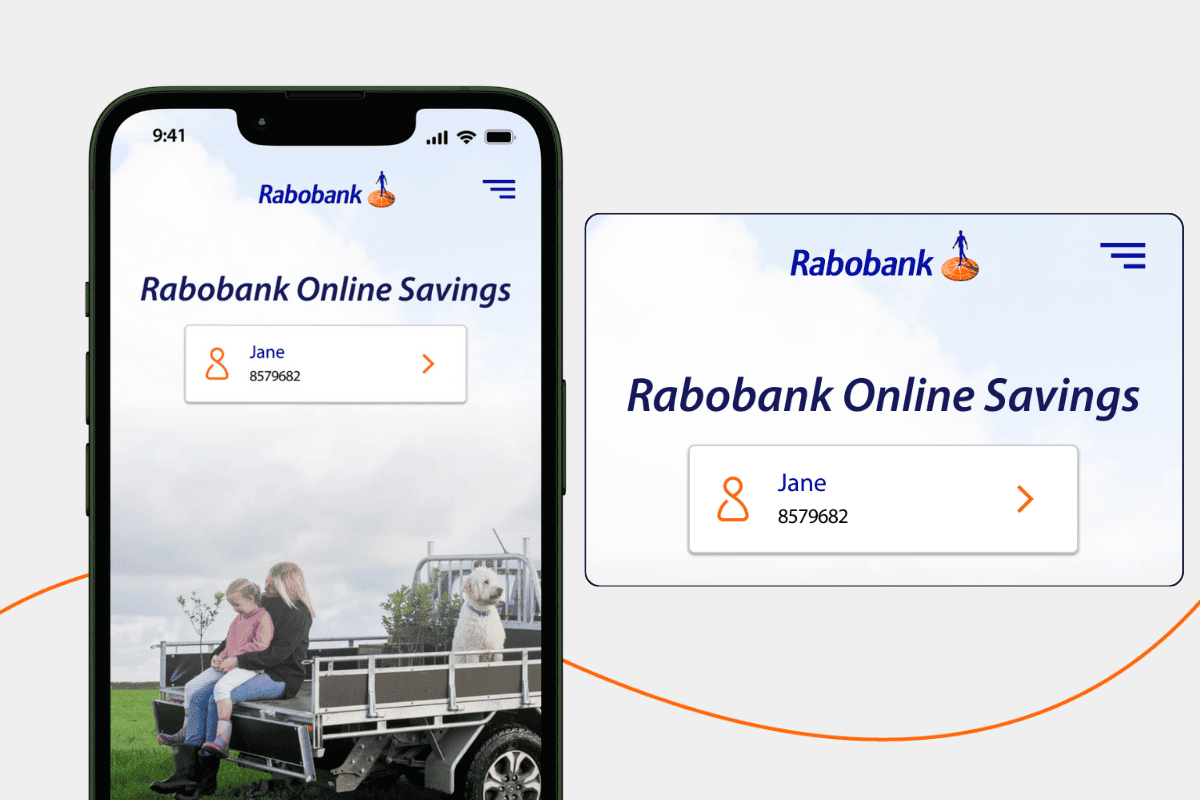
You can find your customer number by opening the Rabobank New Zealand Online Savings app on your mobile device.
Don't have the mobile app? You can also find your customer number on the welcome email sent to you when you created your Rabobank Online Savings account.